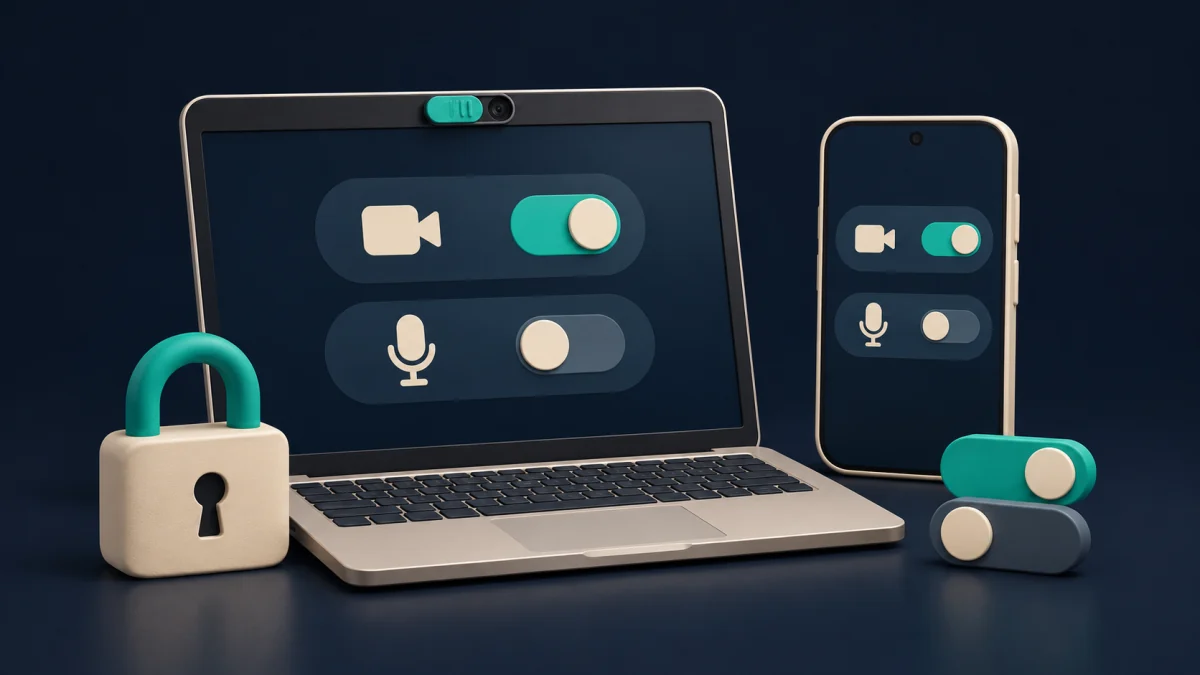
Webcam Privacy: Browser Camera and Microphone Permissions
Webcam privacy starts with knowing which website can access your camera and microphone, what your browser has remembered and what remains on a shared device. This practical guide explains the controls without treating a permission switch as a promise of anonymity.
This is an editorial guide for adults aged 18 and over. CamZtag links to external services; a provider’s account, retention and recording practices need to be checked separately.
Check the address before the permission prompt
Read the domain in the browser’s address bar rather than relying on a familiar page colour or a copied logo. A permission applies to a website and a device context. A previous decision on a laptop does not tell you what is allowed on your phone. Decide what you intend to do before accepting a prompt, especially when a page opens in an embedded browser inside another app.
Camera access and microphone access are separate decisions. Playback sound comes through your output device; allowing a microphone supplies an input. If a remote video does not play, first use the playback and sound troubleshooting steps. Do not grant extra device access simply to see whether a blank player changes.
Review or remove a saved browser permission
- Open the browser settings for the website you actually used.
- Inspect camera and microphone individually. Keep only the access required for the feature you deliberately want.
- Remove or block a saved permission when you no longer need it, then test whether the change took effect.
- If access remains unavailable, check the operating system’s controls for that browser and the selected camera or microphone.
On desktop Chrome, the relevant controls are under Settings, Privacy and security, Site settings, then Camera or Microphone. Firefox exposes per-site decisions in its permissions settings and address-bar controls. Device menus can differ, so follow the official instructions for your browser rather than assuming a screenshot from another phone matches yours.
Separate three different privacy tasks
| Your goal | Relevant control | What it does not establish |
|---|---|---|
| Stop future device access | Camera and microphone permissions. | Whether previously shared material was retained elsewhere. |
| Remove a local browser session | Sign out and review that site’s stored data. | That the provider has deleted your account. |
| Close an account or request data deletion | The provider’s account tools and privacy contact. | That every category of information is erased immediately; check the provider’s stated process. |
Choose the task before clearing settings. Removing site data can disrupt a remembered login or preference, while leaving account records at the service unchanged. Keep the information needed to recover an account before making local changes. Avoid using a work or shared browser profile for a session whose history or saved login you do not want mixed with other activity.
A shared-device closing checklist
End the active feature using its own controls, sign out of the provider and close unused tabs. Review whether the browser offered to save a password or keep a session signed in. Check site notification permissions as well as camera and microphone access: an unwanted notification can reveal activity even when the camera is off. On a device you do not own, leave the owner’s unrelated settings alone.
These steps reduce accidental access and account exposure. They cannot control another participant’s device or recover information already shared. Keep identifying details out of screenshots you send to support, and provide the exact error message and browser version instead of an entire private conversation.
Frequently asked questions about webcam permissions
Does switching off camera access delete a recording?
No. A device permission controls access through the browser. It is a different question from whether an external service or another participant retained something already shared. Check the service’s recording and deletion information.
Why does the camera work in one browser but not another?
Browsers can keep different site permissions and select different input devices. Check the browser you are using and its operating-system access before assuming the camera itself has failed.
Should I allow my microphone to fix silent playback?
Start with player mute, volume and the selected speaker or headphones. A microphone is an input; permission to use it is not a general playback-sound repair.
Browser references and related guidance
- Google Chrome: camera and microphone access.
- Mozilla Firefox: camera and microphone permissions.
- Mobile browser controls, playback and data use.
Browser references checked on 18 November 2026. Prepared by the CamZtag editorial team. This guide describes browser controls; consult the relevant service for account-specific requests.